AI-Powered Coding: Learn Faster, Build Smarter
Haoyang Dong, Doctoral Student at UEF
Last updated: 18.09.2025
Why use inline AI for coding?
Inline AI is like a sharp pair of training wheels: it helps you move quickly without taking your hands off the handlebars.
Learn as you build – Ask for code and an explanation right where you're working.
Unblock faster – Get debugging hints and quick fixes when an error appears.
Improve quality – Generate tests, refactor for readability, and add docstrings in seconds.
Stay in flow – No context‑switching to search engines or documentation; AI is in the editor/notebook with you.
Bottom line: AI is your co‑pilot, not your autopilot. You're still the engineer who decides what ships.
What you'll be able to do
Generate starter code for a task (plots, APIs, data wrangling).
Explain unfamiliar code line‑by‑line.
Transform code (refactor, vectorize, optimize, or change libraries).
Debug errors with actionable suggestions.
Document functions/classes and create quick unit tests.
Before you start
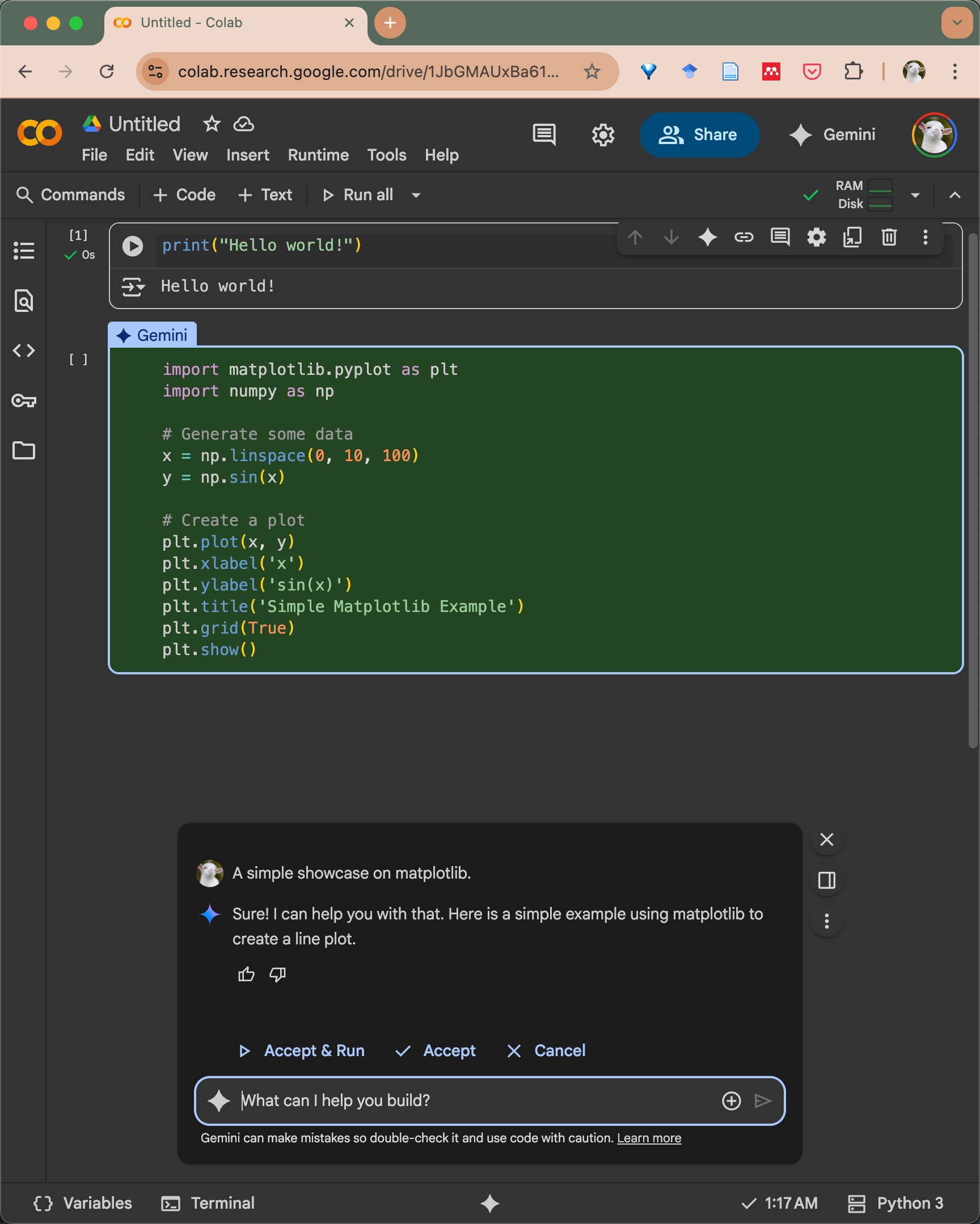
Google Colab (Gemini): Open a Colab notebook. You'll see the Gemini panel inline. See Figure 1 for a sample generation with "Accept & Run."
VS Code (ChatGPT, Claude, Gemini, etc.): Open a
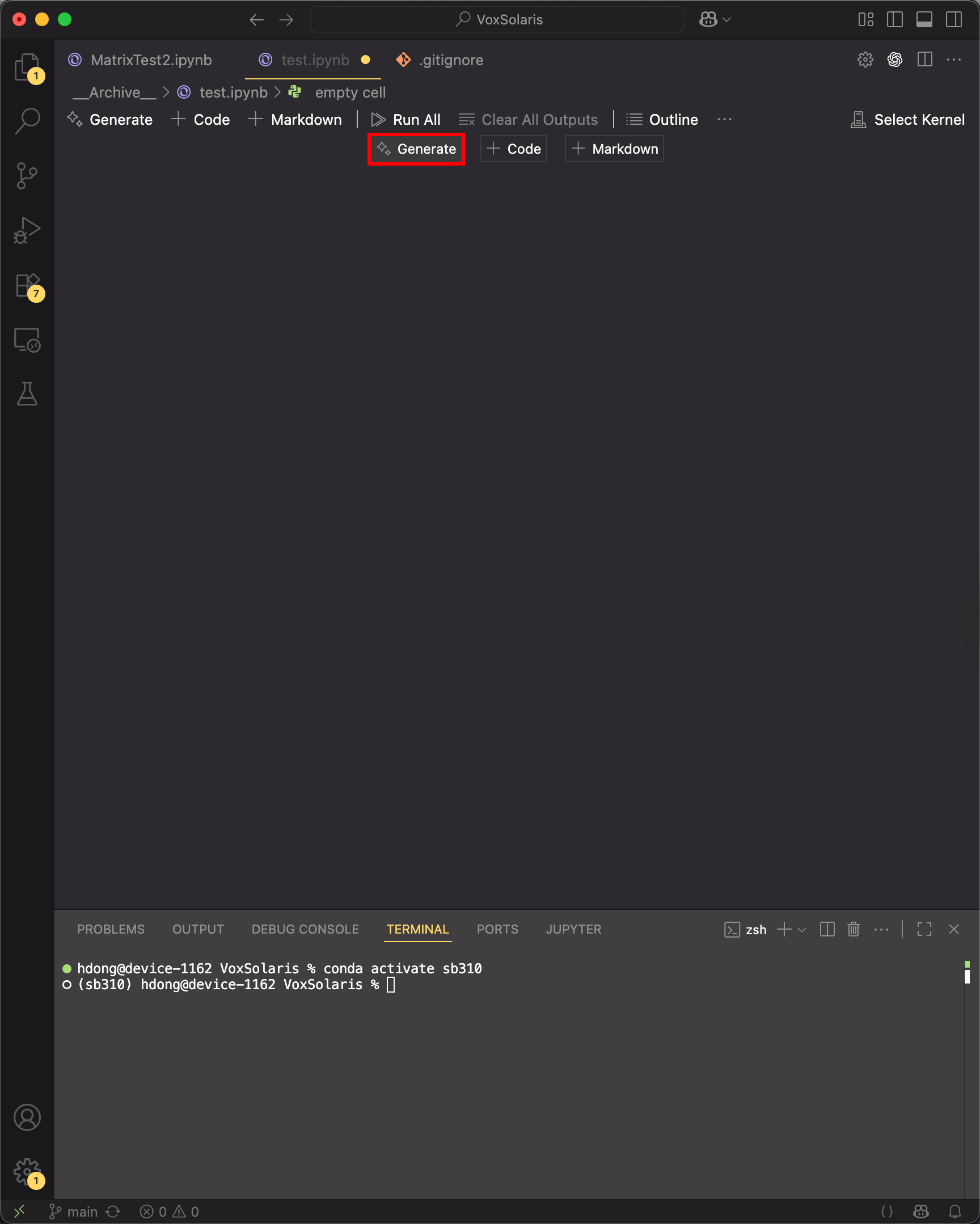
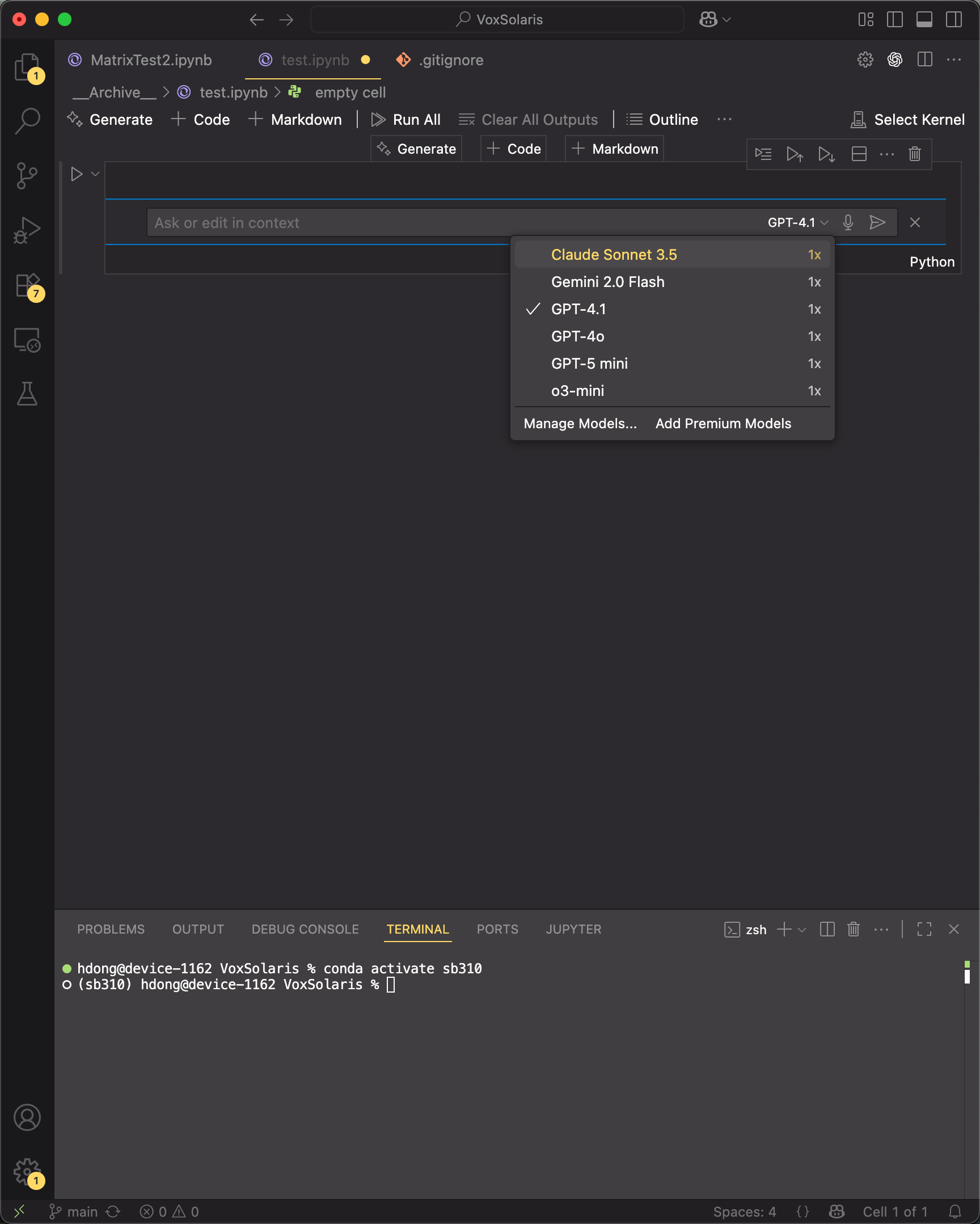
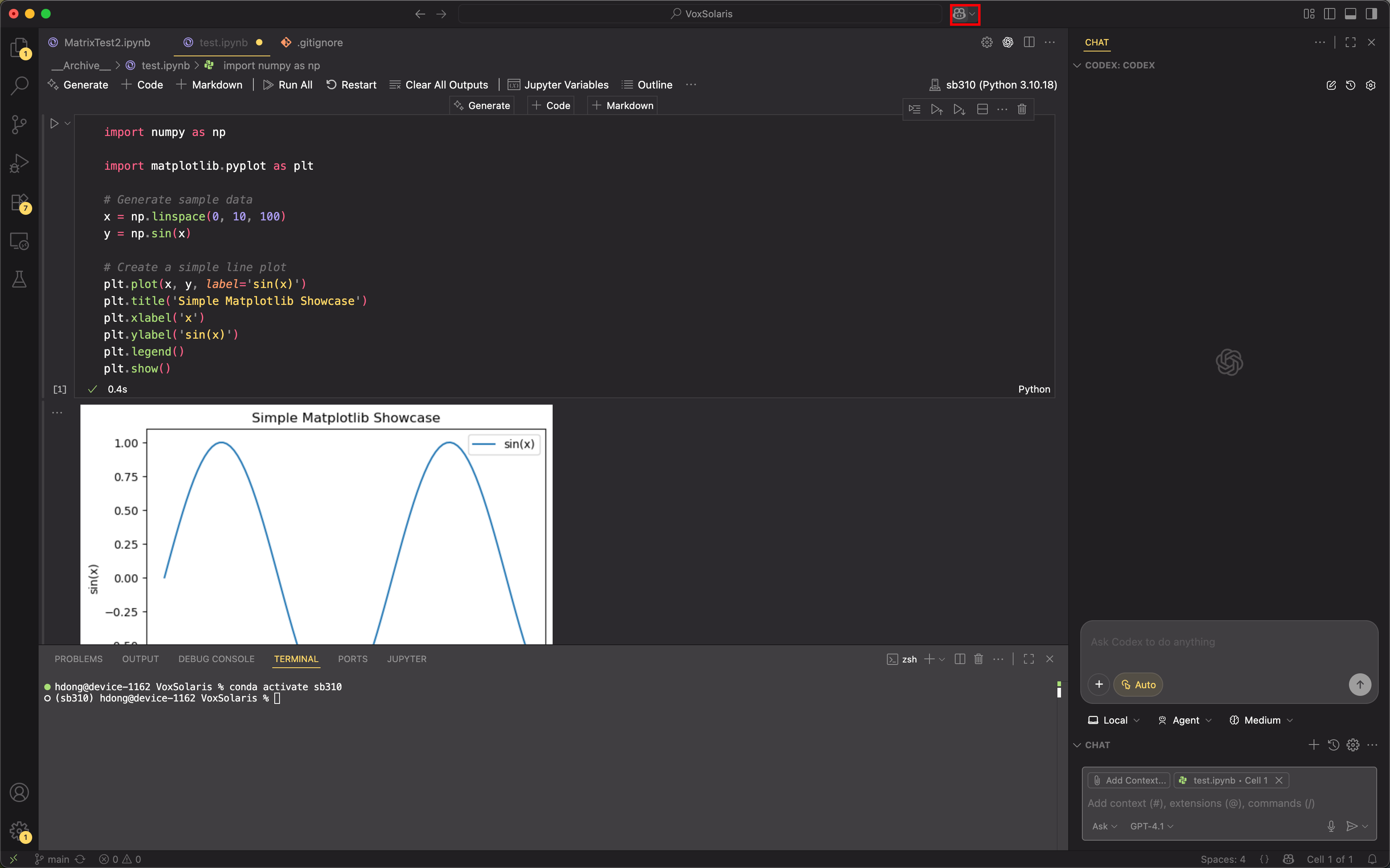
.ipynbor code file. You'll see a Generate button and a model selector. Figure 3 highlights "Generate," and Figure 4 shows the model dropdown.
Tip: If the AI panel isn't visible, update your extensions, reload the window, and ensure you're signed in to the model provider.
Colab (Gemini): Generate, Explain, Transform
Goal: Create a simple plot and understand the code.
Prompt the AI. In a new cell, open the Gemini prompt and ask:
"Create a Matplotlib line plot of sin(x) from 0 to 10 with labeled axes and a title."
See the inline suggestion in Figure 1, p.3. Click Accept to insert or Accept & Run to insert and execute.Read and run safely. Skim imports and outputs. Confirm libraries (
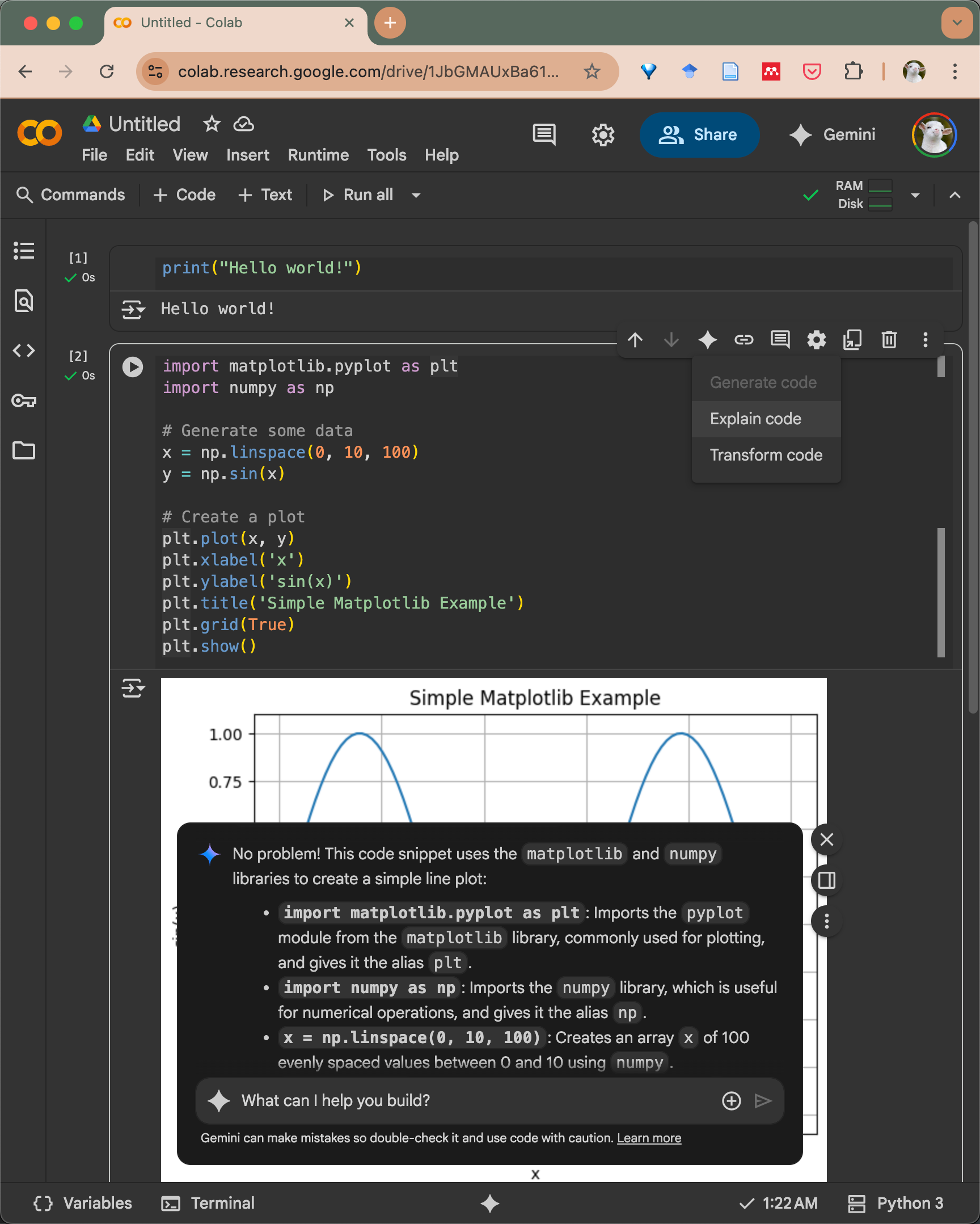
numpy,matplotlib) exist; if not, add apip installcell.Ask for an explanation. Highlight the generated cell → open the AI menu → Explain code (shown in Figure 2). You'll get a clear breakdown of each line.
Transform when needed. Use Transform code to, for example, "switch to
plotly," "vectorize this loop," or "add a legend and grid." (Figure 2).Iterate. Ask for small changes ("make the figure 8×4", "add a dashed line for cos(x)"), then re‑run.
Safety check: Prefer Accept over Accept & Run until you've read the code. Trust, but verify.
VS Code: Inline AI in Notebooks and Files
Goal: Use inline AI without leaving your editor.
Open your file or notebook. In VS Code, open the
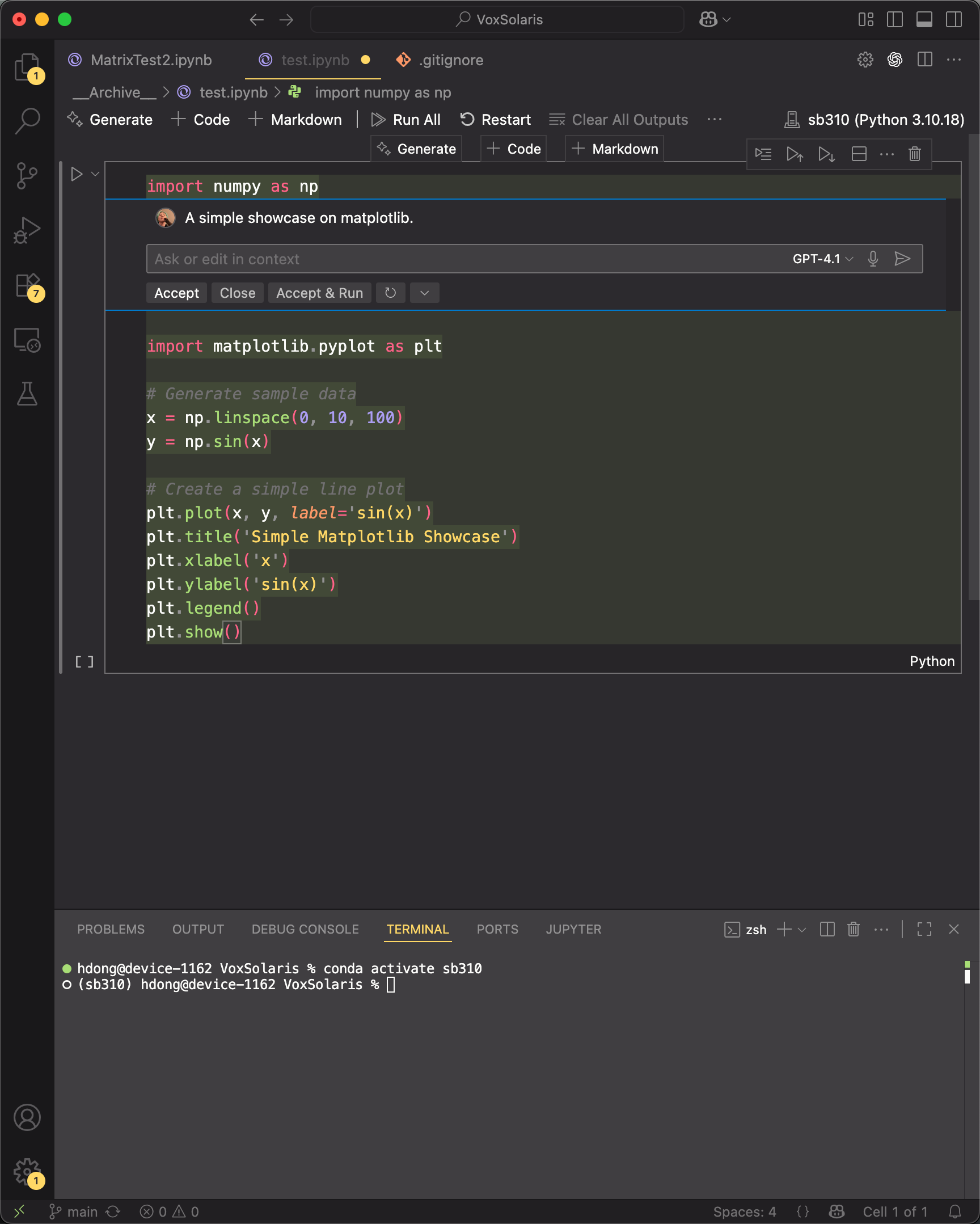
.ipynbor.py.Start generation. Click Generate on the toolbar (see Figure 3, p.5). A blue prompt bar appears in the editor.
Pick a model. Use the dropdown to choose a provider (e.g., GPT‑4.x, Claude Sonnet, Gemini). See Figure 4, p.6. Choose the strongest model you have for reasoning; switch to a faster one for quick drafts.
Prompt in context. Type a request like:
"Write a NumPy + Matplotlib example that plots sin(x) and labels axes; keep it under 15 lines with comments."
The AI will propose code inline above your cell or selection (see Figure 5, p.7). Use Accept to insert or Accept & Run to run immediately.Review output. Run the cell; your chart should render as shown in Figure 6, p.8. If something fails, ask: "Fix the NameError; keep your edits minimal and explain."
Explain / Refactor. Select code → prompt: "Explain each line in one sentence." or "Refactor to functions with type hints and docstrings."
Prompt recipes that work (copy/paste)
Starter code: "Write a minimal example that [does X]. Use [library], under [N] lines. Include comments and a short explanation below the code."
Explain this: "Explain the selected code for a beginner. Summarize its purpose, then annotate line‑by‑line."
Transform / Refactor: "Refactor this to a function
process_data(df) -> pd.DataFramewith type hints, docstring, and no global state."Debug precisely: "Diagnose this stack trace and propose the smallest fix. Explain why it broke. Don't change unrelated code."
Tests: "Generate pytest unit tests for
foo(x). Cover edge cases and one failure case. Keep tests isolated."Performance pass: "Profile this function mentally and propose two vectorized alternatives. Explain trade‑offs and Big‑O."
Best practices (and a few hard truths)
Do this
Provide context: OS, Python version, libraries, your goal, constraints.
Constrain the output: "≤15 lines", "pure function", "no I/O", "PEP8".
Iterate in small steps; ask for diffs: "show only changed lines."
Cite sources & keep notes for academic integrity (what you generated vs. edited).
Unit tests first for critical functions; let AI scaffold tests.
Avoid this
Blindly clicking Accept & Run. Read first.
Pasting secrets (API keys, tokens). Use environment variables.
Letting AI rewrite everything at once—hard to review, easy to break.
Trusting invented APIs or wrong method names. Cross‑check docs.
Violating course or exam rules. If "no AI" is stated, "but it was inline!" won't fly.
Common pitfalls & quick fixes
Missing imports/packages:
Ask: "List required imports and add an install cell if needed."
Stateful notebooks bite back:
Ask: "Assume a fresh runtime; include all dependencies and deterministic seeding."
Model can't "see" your variables:
Paste the relevant snippet or say: "Variables available:
df(pandas DataFrame with cols …)."Non‑reproducible output:
Capture versions with
pip freeze | grep -E 'numpy|pandas|matplotlib'.
Ethics & integrity
Follow your course policy on AI assistance. If allowed, disclose: "Generated with inline AI and edited by me."
When AI proposes unfamiliar code, verify with official docs and tests before submission.
Troubleshooting (fast)
No AI panel?
Update extensions and sign in.
"Model not available"?
Switch to another model in the dropdown (Figure 4).
Long, messy output?
Re‑prompt: "Return only the code block. Keep under 20 lines."
Nothing runs?
Start a fresh kernel, re‑import packages, and re‑run cells top‑to‑bottom.
Final words
Be fearless about asking and iterating. The fastest way to learn is to try, read, tweak, run, repeat. If the AI says something odd, push back with: "Show citations," "Use official API," or "Explain your choice." You're the reviewer. Ship only what you understand.